
| PowerEsim Help Manual |
| PowerEsim is a free web-based software providing power supply (SMPS) design, transformer design, magnetic design, loss analysis, thermal analysis, waveform analysis, MTBF analysis, BOM building, DVT analysis and optimization of power supply (SMPS). | |
If you
want to management more than one power supplies, Project Management Page can help you to manage the whole project.


You can
go to Project management Page by clicking “Project Management” button
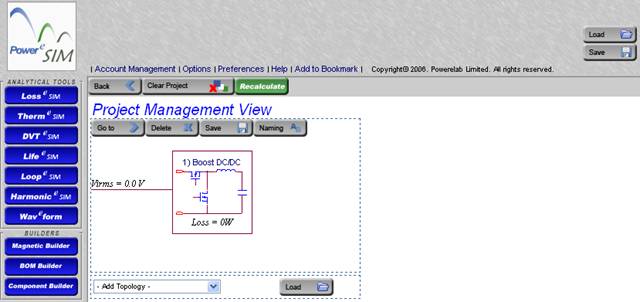

There
are two ways to add power supply
-
Load from file
-
Add new power supply
o
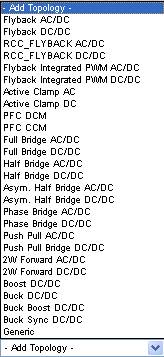
“Add Topology” list box contains a list of
topology. After select one topology, a new power supply is added
.
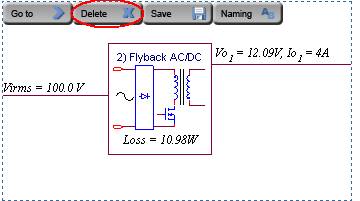
Press
“Delete” button can delete power supply from project
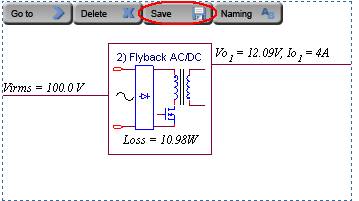
Press
“Save” button can save power supply separately
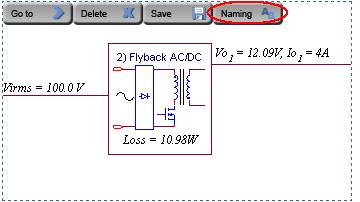
Press
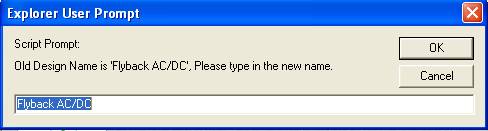
“Naming” button will pop up a window and
user can give the power supply a name
In
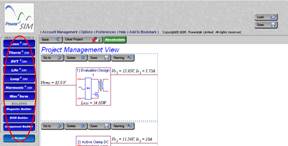
project view, a project summary is shown at the analyzing tools

It shows
the total losses for whole project and the loss for each power supply.

It shows
the number of reject and warning message for whole project and each power
supply.

It shows
the total failure rate, MTBF and Life Time for whole project.

It shows
the simulated result for each power supply.

It shows
the number of parts at BOM at whole project and each power supplies.

It shows
the number of components that added separately for whole project and each power
supplies.
 à
à 
Press
“Go To” button or the circuit can select the power supply and switch to power
supply view
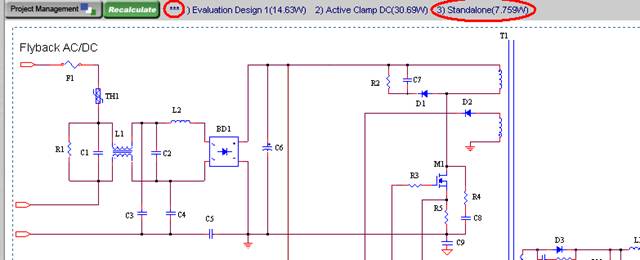
In power
supply view, you can view a project summary at the top. This project summary
frame provides you a link. Press the link (the name of the power supply e.g. 3
Standalone) can switch to another power supply. Beside, the sign *** shows
which is the current one.
 Prev.: Getting Start Prev.: Getting Start | Next: Loss Analysis  |